 admin
admin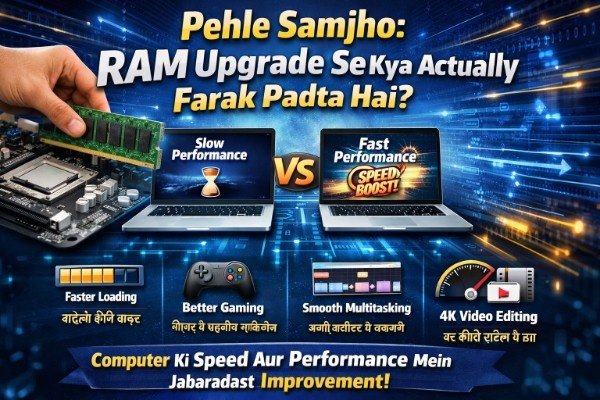
Introduction: RAM Upgrade Ki Galti Jo Log Karte Hain
PC ya laptop slow ho raha tha, YouTube par video dekha — “RAM upgrade karo, sab theek ho jaayega.” Seedha Amazon ya Flipkart khola, ek RAM stick order ki, install karne ki koshish ki — aur phir pata chala ki woh compatible hi nahi thi. Ya phir install ho gayi lekin PC ne detect hi nahi ki. Paise gaye, time gaya, frustration alag.
Yeh story bahut logon ki hai. RAM upgrade karne se pehle kuch basic lekin critical cheezein jaanni zaroori hain — jo zyaadatar YouTube videos aur blogs skip kar dete hain. Is article mein hum wahi 5 essential cheezein detail mein cover karenge jo aapko ek successful, waste-free RAM upgrade ke liye chahiye.
Beginner ho ya experienced user — yeh guide aapke kaam ki hai. Chaliye shuru karte hain.
Pehle Samjho: RAM Upgrade Se Kya Actually Farak Padta Hai?
RAM (Random Access Memory) aapke system ka short-term memory hai — jitni zyaada RAM, utne zyaada tasks ek saath handle ho sakte hain bina slowdown ke. Lekin RAM upgrade karne se pehle yeh samajhna zaroori hai ki RAM upgrade kab actually kaam karta hai.
- Agar aapka PC RAM-bottlenecked hai — upgrade se bada farak padega
- Agar problem CPU ya GPU ki hai — RAM dalke kuch nahi hoga
- Multitasking, browser tabs, gaming, video editing — RAM yahan genuinely help karta hai
- Task Manager mein RAM usage 80–90% dikh raha ho toh upgrade zaroor helpful rahega
Quick Check: Windows mein Ctrl + Shift + Esc dabao → Performance tab → Memory. Agar idle mein bhi 70%+ use ho raha hai toh RAM upgrade genuinely useful rahega.
RAM Upgrade Karne Se Pehle — 5 Zaroori Cheezein
1
Apna Motherboard / Laptop Kitni RAM Support Karta Hai — Pehle Check Karo
Maximum supported RAM ignore karna sabse badi galti hai
Har motherboard aur laptop ki ek maximum RAM support limit hoti hai. Aap chahe kitni bhi RAM dalo — woh system usse zyaada detect hi nahi karega. Yeh ek hard limit hai jo BIOS aur chipset decide karta hai.
Real Example: Rohit ne socha ki 8GB se 32GB upgrade karna accha hoga. Lekin uska purana H110 chipset motherboard sirf 16GB hi support karta tha. 32GB ki RAM waste ho gayi — ek stick hi kaam aai, doosri idle padi rahi.
- Apna motherboard model jaano — CPU-Z free software se easily pata chalega
- Manufacturer ki website par specifications check karo
- Laptop ke liye Crucial.com ka System Scanner tool use karo — 100% accurate result deta hai
- Memory slots kitne hain woh bhi dekho — upgrade karne ki jagah hai ya nahi
RAM upgrade karne se pehle yeh step skip karna sabse costly mistake hai — literally paise barbaad ho jaate hain.
2
RAM Ki Generation — DDR4 Hai Ya DDR5? Galat Generation Mat Lo
DDR4 aur DDR5 physically ek slot mein fit nahi hote
RAM ki generations hoti hain — DDR3, DDR4, DDR5. Har generation ki slot alag hoti hai, voltage alag hoti hai, aur pinout alag hota hai. Agar aapne galat generation li, woh physically slot mein jaayegi hi nahi — ya force karne par motherboard damage ho sakta hai.
2026 mein zyaadatar new systems DDR5 use karte hain, lekin 2020–2023 ke systems DDR4 par hain. Purane systems mein DDR3 bhi milega. Isliye RAM upgrade karne se pehle apni existing RAM ki generation confirm karna must hai.
| RAM Type | Launch Year | Common In | Speed Range |
|---|---|---|---|
| DDR3 | 2007 | 2012–2017 systems | 1333–2133 MHz |
| DDR4 | 2014 | 2017–2023 systems | 2133–3600 MHz |
| DDR5 | 2021 | 2022–2026 systems | 4800–8000+ MHz |
- CPU-Z software mein Memory tab open karo — type wahan clearly dikhta hai
- Ya apni existing RAM stick nikaalo aur us par printed label padho
- Laptop users ke liye SO-DIMM form factor hota hai — desktop se alag, smaller
Galat Generation: DDR5 RAM ek DDR4 motherboard mein kaam nahi karega — chahe speed kitni bhi match kare. Generation first, speed second.
3
Single Channel vs Dual Channel — Yeh Farak Bahut Bada Hai
Sirf RAM amount nahi, configuration bhi matter karti hai
Ek aam galti yeh hoti hai ki log sirf ek badi RAM stick laate hain — jaise 16GB ki ek stick — aur sochte hain kaam ho gaya. Lekin agar aap same capacity ki do sticks daalo (2x8GB) toh system Dual Channel mode mein chalega — jo Single Channel se genuinely 20–40% faster hota hai real-world performance mein.
Gaming aur heavy workloads mein yeh farak clearly feel hota hai. Isliye RAM upgrade karne se pehle apni configuration plan carefully karo.
- 1x16GB single channel — thoda slower lekin cost-effective
- 2x8GB dual channel — same price mein zyaada performance, recommended
- 2x16GB dual channel — sweet spot for gaming + multitasking in 2026
- Motherboard manual dekho — konse slots dual channel activate karte hain (usually slot 2 aur 4)
Pro Tip: Agar budget allow kare toh hamesha matched pair lo — ek hi brand, ek hi speed, ek hi kit. Mixed RAM sticks mein compatibility issues aate hain.
4
RAM Speed (MHz) Aur Latency (CL) — Kitna Matter Karta Hai?
Zyaada MHz = hamesha better nahi — samjho pehle
RAM sticks par likha hota hai — DDR4-3200 CL16, ya DDR5-5600 CL36. Yeh numbers RAM ki speed aur latency batate hain. Bahut log sirf MHz dekh ke mahenga RAM kharid lete hain — bina yeh jaane ki unka motherboard woh speed support karta bhi hai ya nahi.
Agar aapne 3600 MHz ki RAM li lekin motherboard sirf 3200 MHz support karta hai, toh RAM automatically 3200 par run karegi. Zyaada paisa diya, koi fayda nahi.
| RAM Speed | Best For | Gaming Impact | Price (8GB) |
|---|---|---|---|
| DDR4-2666 | Basic office use | Minimal | ~₹1,200 |
| DDR4-3200 | Gaming, everyday | Good sweet spot | ~₹1,600 |
| DDR4-3600 | Enthusiast gaming | Noticeable on Ryzen | ~₹2,000 |
| DDR5-5600 | New gen systems | Future-proof | ~₹3,500 |
| DDR5-6400+ | Overclockers/Pro | Marginal real-world | ~₹5,500+ |
- AMD Ryzen processors DDR4-3600 par best performance dete hain — speed matters yahan
- Intel systems mein 3200 se 3600 ka farak minimal hota hai daily use mein
- CL (CAS Latency) number — jitna kam utna better. CL16 better than CL18 same speed par
- XMP/EXPO profile enable karna mat bhoolo BIOS mein — varna RAM default slow speed par chalegi
5
Laptop Mein RAM Upgradeable Hai Bhi Ya Nahi? — Pehle Confirm Karo
2024–2026 ke kai laptops mein RAM soldered hoti hai
Yeh sabse heartbreaking discovery hai — RAM kharid li, laptop kholne ki koshish ki, aur pata chala ki RAM motherboard par directly soldered hai. Remove hi nahi ho sakti. Yeh especially MacBooks, ultrabooks, aur budget laptops mein common hai.
RAM upgrade karne se pehle specifically laptop users ke liye yeh step most critical hai. Ek Google search “apna laptop model + RAM upgradeable” karo — 2 minute mein pata chal jaata hai.
- Apple M-series MacBooks: RAM soldered, upgrade not possible
- Dell XPS 13/15 (recent models): mostly soldered
- ASUS ROG, Lenovo Legion gaming laptops: usually upgradeable — SO-DIMM slots hain
- Budget Celeron/Pentium laptops: often soldered or single slot with one free
Check Karne Ka Tarika: Crucial System Scanner (crucial.com/store/systemscanner) apne laptop mein run karo — yeh automatically batata hai ki aapka system upgradeable hai ya nahi, aur compatible RAM options bhi suggest karta hai.
RAM Upgrade Karne Se Pehle — Quick Checklist
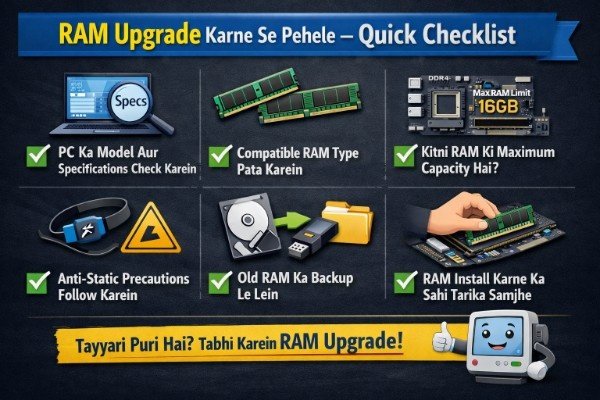
Yeh checklist follow karo RAM order karne se pehle:
- ✓Motherboard/laptop maximum supported RAM check kiya
- ✓RAM generation confirm ki — DDR3 / DDR4 / DDR5
- ✓Form factor check kiya — DIMM (desktop) ya SO-DIMM (laptop)
- ✓Dual channel ke liye matched pair lene ka plan kiya
- ✓Motherboard supported RAM speed (MHz) dekha
- ✓Laptop users ne upgradeable hai ya nahi confirm kiya
- ✗Bina compatibility check ke blindly RAM order karna — avoid karo
- ✗Mixed brands / different speeds ki RAM ek saath dalna — avoid karo
Kitni RAM Enough Hai? — 2026 Ke Liye Real Recommendations
Yeh ek common confusion hai — log ya toh bahut kam RAM par stuck rehte hain ya zaroorat se zyaada kharid lete hain. Chaliye use-case ke basis par clear answer dete hain:
| Use Case | Minimum RAM | Recommended 2026 | Overkill |
|---|---|---|---|
| Basic Office / Study | 8GB | 16GB | 32GB+ |
| Casual Gaming | 8GB | 16GB | 32GB |
| AAA Gaming | 16GB | 32GB | 64GB |
| Video Editing (1080p) | 16GB | 32GB | 64GB |
| 3D Rendering / VFX | 32GB | 64GB | 128GB |
| Programming / Dev | 16GB | 32GB | 64GB |
2026 Sweet Spot: Zyaadatar users ke liye 16GB DDR4/DDR5 dual channel (2x8GB) best value-for-money upgrade hai. Gaming aur multitasking dono smooth ho jaate hain.
FAQ: RAM Upgrade Karne Se Pehle — Aapke Common Sawaal
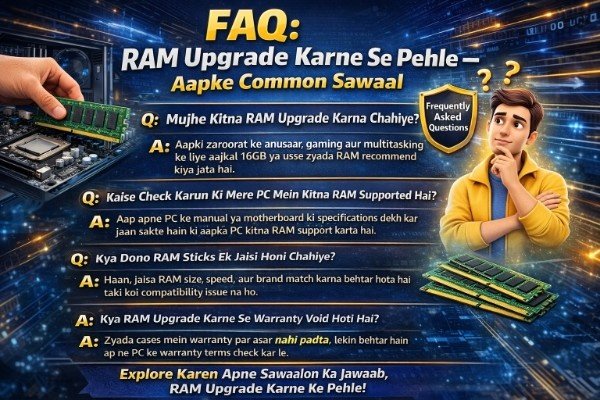
Q1. RAM upgrade karne se pehle sabse pehle kya check karna chahiye?
Sabse pehle apna motherboard ya laptop model check karo aur uski maximum supported RAM dekho. Phir existing RAM ki generation (DDR4/DDR5) confirm karo. Yeh do steps baaki sab se zyaada important hain — galat karo toh RAM waste ho jaayegi.
Q2. Kya 8GB se 16GB upgrade worth it hai 2026 mein?
Haan — bilkul worth it hai. 8GB RAM 2026 ke standards se genuinely tight ho gayi hai. Chrome ke 10 tabs, ek game, aur background apps — yeh sab ek saath 8GB mein lagg ya slow ho jaata hai. 16GB upgrade se multitasking aur gaming dono mein clear improvement aati hai.
Q3. Kya alag brands ki RAM ek saath daal sakte hain?
Technically possible hai lekin recommended nahi — especially RAM upgrade karne se pehle. Mixed brand RAM sometimes boot issues, instability ya BSOD (Blue Screen) cause karta hai. Agar upgrade kar rahe ho toh ek matched kit lo — same brand, same model, same speed. Zyaada reliable hoti hai.
Q4. Laptop mein RAM upgrade karna safe hai?
Haan — agar laptop upgradeable hai toh bilkul safe hai. Pahle confirm karo ki slots removable hain (soldered nahi hain). Upgrade karte waqt ESD (static electricity) ka dhyan rakhna — kisi metal surface ko chhoo ke discharge karo pehle. Laptop manual ya iFixit guide follow karo — step-by-step process clearly hoti hai.
Q5. RAM upgrade ke baad PC slow kyun rehta hai?
Agar RAM install ke baad bhi PC slow hai toh check karo: (1) XMP/EXPO profile BIOS mein enable hai ya nahi — default mein off hota hai, isliye RAM slow speed par chalti hai. (2) Dual channel ke liye sahi slots mein RAM daali hai ya nahi — motherboard manual check karo. (3) Problem RAM mein nahi, CPU ya storage mein bhi ho sakti hai.
Q6. DDR4 ya DDR5 — 2026 mein nayi machine ke liye kaunsa lena chahiye?
Agar nayi machine le rahe ho toh DDR5 future-proof choice hai — especially Intel 12th gen+ ya AMD Ryzen 7000+ systems ke saath. Lekin agar existing DDR4 system upgrade kar rahe ho toh DDR4 hi lo — DDR5 purane motherboard mein kaam nahi karega. RAM upgrade karne se pehle generation match karna non-negotiable hai.
Conclusion: RAM Upgrade Karne Se Pehle — Final Summary
RAM upgrade ek excellent investment hai — lekin sirf tab jab sahi knowledge ke saath kiya jaaye. RAM upgrade karne se pehle yeh 5 cheezein yaad rakho:
01
Maximum supported RAM check karo — motherboard ya laptop ki limit jaano
02
Generation confirm karo — DDR3 / DDR4 / DDR5 — galat generation kaam nahi karti
03
Dual channel ke liye matched pair lo — 2x8GB beats 1x16GB in performance
04
Supported MHz speed dekho — zyaada speed wali RAM lena wasteful ho sakta hai
05
Laptop users pehle confirm karo — RAM soldered hai ya removable slots hain
Yeh 5 steps follow karo aur aapka RAM upgrade guaranteed smooth aur effective rahega. Paise waste nahi honge, system genuinely fast ho jaayega, aur koi compatibility surprise nahi aayega.
Ek sahi RAM upgrade se aapka PC ya laptop naya jaisa feel karne lagta hai — bina zyaada kharche ke. Bas thoda homework pehle karo, aur baaki sab aasaan hai.